

What is Claude.AI, and how can I use Claude to help me run my small business? Before I get to how to use Claude AI, let’s answer the first question.
Claude is an AI assistant. But where most AI gives you one answer at a time, Claude works more like a full team member. You give it a project and connect it to the software that you already use. Then, you can do something else in your business while it researches, plans, and completes the task from start to finish.
We’ve all heard of AI becoming a virtual assistant, and in my journey to find the best AI to fit that role, I’ve used ChatGPT, Grok, Gemini, all of them. With them though, it’s the same thing every time. They remember nothing. They don’t know who I am, what I do, or what my business does. If I need help writing something or analyzing data, I have to upload all the information. And the moment that chat is over, I start all over on the next conversation. #groundhogday
So, basically, it’s like hiring a new assistant multiple times per day. With Claude, though, the more you use it, the better it knows you, what you like, and your business. And not only does your new assistant learn very quickly, but it also brings a team of support staff to help. Think of the support staff as independent contractors you can hire for specific tasks in which they have expertise.
Within a few minutes, you have a highly capable assistant who can delete spam from your email and prioritize your daily schedule. In addition, though, if you tell her that your company needs to design a new mobile app, He’ll contact her technical expert. And within an hour, He’ll report back to you with the mock-up.
Or, if you need some accounting help, He contacts her QuickBooks expert. That expert analyzes your books and lets you know you have a few overdue invoices. Then it asks if you want it to send a custom reminder to each customer via email. Within a few seconds, new emails appear in your draft folder in your email program. As you read through them, you realize that your AI assistant pulled details from the CRM about each customer and made each email personal to that specific customer.
It took you just a few seconds to give the instructions, so it saved you an hour or more of research and writing. That is just the tip of the tip of the iceberg!
How to Use Claude AI to Increase Your Margins (Beginner’s Guide)
A couple of months ago, one of my marketing team members got an offer she couldn’t refuse and told me she would be leaving the team. It was totally unexpected. She was like family, so the whole team took the news hard. We’d visit in the hallway or around the coffee pot, saying, “How are we going to replace her?”
Since her resignation was so sudden, we figured we’d take our time in the hiring process. We didn’t want to feel rushed and end up replacing her with a “bad hire.” As it turned out, we didn’t actually need to. With the tools that we now have available that we’ll explain today, each of my remaining team members is so much more productive than we’ve ever been. We’re now able to do more work and get fantastic results with the same staff.
Obviously, I’m in a consulting business, so my example may be a little different from other industries. But the largest share of my business overhead is payroll and payroll expenses. Anytime I can increase productivity without increasing (or even decreasing) my payroll expenses, I’m increasing my profit margin. You can too!
How to Use Claude.AI for Free.
As I was researching this topic, I found that the question “How to Use Claude AI for Free“ kept popping up over and over. So, before I get into how you can really use this software to lower your costs and increase profit in your small business, let me tackle the elephant in the room. Can you use Claude for free and still get value out of it? The answer is well… technically, “Yes.” The software does have a free version. And that free version is very, very useful.
However (and this is a big however), the free version only lets you perform a specific number of actions before it tells you, “You’ve reached your usage limit.” At that point, you’ll need to wait a few hours before you get more usage available.
In all fairness, though, this software will do the work of as many as two or three full-time employees. If you just implement a few of the things that I suggest below, you’ll recoup the small fee that you pay for Claude very quickly.
1) When Set Up Properly, Claude.AI Becomes Your Personal AI Assistant and Brings a Whole Staff with Him.
Think about the last time you hired someone who was a really good part of your team. A few weeks into the new job, that person was dynamite!
But remember the first hour? Your sharp new hire showed up, eager and capable, but… couldn’t do a thing yet. He doesn’t have a key to the building. He can’t log into email. Your new assistant doesn’t know your clients, and has no idea how you like things done. For a day or two, your brilliant new hire just sits there waiting for access.
Claude is similar. Out of the box, he’s the smartest assistant you’ve ever met — but he’s locked out of everything. He can’t see your calendar or open your files. At this point, Claude is just like ChatGPT, Grok, and Gemini.
But after you take a few minutes to connect Claude to the tools you already run your business on — your email, your calendar, your files — and something changes. He stops being a stranger at a desk and becomes a member of your team. (We do this with Connectors, and I’ll walk you through it step by step.)
And here’s the part nobody tells you. The best assistants don’t do everything themselves. They know who to call. Once Claude is set up, he doesn’t just answer you — he brings a whole staff with him. An in-house worker who sits at your computer. A field worker you send out onto the web. A specialist for the technical jobs. You hired one assistant. You got a team.
How to Set Up Claude.AI (The 15-Minute Onboarding).
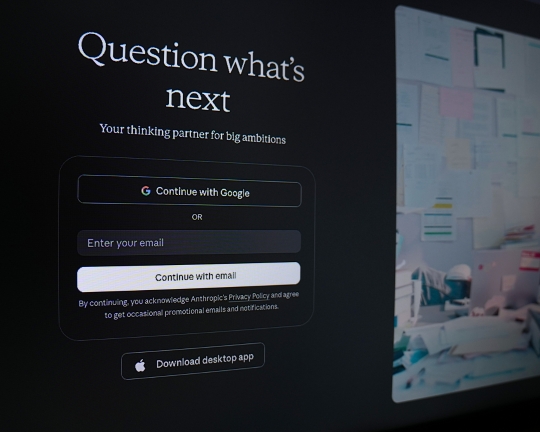
Onboarding a new employee can take weeks. Onboarding Claude takes about fifteen minutes. Here’s the good news — you only do this once. Set him up today, and he shows up ready to work every day after that.
There are three steps: pick your plan, install him where you work, and hand him the keys.
Step 1: Create Your Account and Pick a Plan.
Go to claude.ai and create an account. You’ll land on the free plan, and as I mentioned earlier, the free version is genuinely useful — use it to kick the tires. But the moment Claude saves you that first hour of real work, upgrade to a paid plan. The paid version removes the usage limits that stop you mid-task, and it unlocks the staff we just talked about. Trying to run your business on the free version is like hiring a great employee and only letting them work until lunch.
Step 2: Install Claude Where You Actually Work.
Claude isn’t just a website. Download the desktop app to your computer and the mobile app to your phone. Install both. Here’s why it matters: the desktop app is where the in-house worker (Cowork) sits down and does hands-on work in your real files — and we’ll get to him later. For now, just know that the website alone is the front desk. The desktop app is the whole office.
The App has several Settings you can customize. Here is what I did. In the lower left corner, you’ll see your name. I clicked there and went to Settings > General. About halfway down, there is a box for instructions. I entered my name, my company, my website URL, and the software that I typically use on a day-to-day basis.
That set of instructions is available whenever I use the app, so I don’t have to keep repeating who I am and what I do. A few items below General in the toolbar is Capabilities. Here you can give your AI agent a memory and allow it to search past chats for answers. I can’t tell you how valuable and time-saving this is!
One final thing to make Claude work for you on the internet. You’ll need to have Chrome as your browser and install the Claude extension on your browser. You’ll need to download it and install it on your computer. Then, click the three dots on the far right side of the browser to open the settings. Look for Extensions > Manage Extensions and search for Claude. Follow the prompts to add Claude to the browser.
Step 3: Hand Him the Keys (Connectors).
This is the step that changes everything, and it’s the one most people skip. In your settings, you’ll find Connectors. These are the secure links between Claude and the tools you already use — your email, your calendar, your files, and even other software like your CRM. Turn on the ones that match your business. Each one you connect is another door you’ve unlocked for your new assistant.
Connect your email, and he can draft and sort it. Connect your calendar, and he can manage it. The more keys you hand him, the more of your actual workload he can carry.
In my business, we run our email account through Google Gmail. I was able to quickly connect it in Settings > Connectors. We also use SEMrush, QuickBooks, Canva, and Zoho CRM. It took me just a few seconds to connect them all.
At this point, since I didn’t know what to do first, I went to the chat function and asked a question. I asked it to check my email. About 60 seconds later, it gave me a paragraph starting with “Here is a list of the potential marketing/sales (spam) emails that I found. Do you want me to just delete them for you?”
I carefully scanned the list and saw that they were all, in fact, spam emails. So, I replied, “Sure. Please do.” I then opened my Gmail up and watched all the spam disappear from my inbox. (I was sold!)
That’s it. Account, apps, keys. Fifteen minutes, done once, and your assistant is finally on the payroll.
2) Like Any Assistant, Claude Works Through Specific Tools. Each Has Ways to Help You Get Different Types of Work Done.
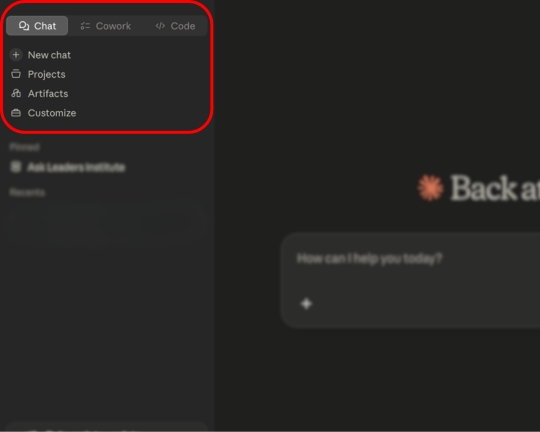
A great assistant doesn’t just have talent — he has a few tools he works through, and each one does a different job. Claude uses specific terminology for these tools. They are called, Chat, Projects, and Artifacts.
Most people only ever use the first one. They chat with Claude, get a good answer, and never realize there are more tools sitting right there on the desk. Learning what each one is for makes the difference between an assistant who answers questions and one who can actually run your back office.
Chat Is Where You Talk to Your Assistant.
Chat is the everyday back-and-forth across the desk. You give an instruction, he gives you an answer. You ask a question, paste in a document, talk through an idea — and he keeps up with all of it.
Here’s where it gets powerful, though. Because you handed Claude your keys during setup, the chat box isn’t just answering questions anymore — it’s reaching into your actual business. Type a request into a regular chatbot like ChatGPT or Grok, and the best it can do is compile some text for you. Type the same request to Claude, and he goes and does it. Same little box, but with completely different outcomes.
A few things I can ask right from the chat window that the others simply can’t:
- “What’s on my calendar tomorrow, and which meetings still need an agenda?” — He reads my actual calendar and tells me.
- “Find the last email from this client and draft a reply.” — He pulls the real thread from my inbox and writes the response.
- “Pull our top five landing pages from Semrush and tell me which one is slipping.” — He goes into the live data and comes back with the answer.
- “Look up this customer in my CRM and summarize where we left off.” — He checks the actual record, not a guess.
A regular chatbot answers from a frozen library of things it read months ago. Claude answers from your email, your calendar, your numbers — today in real time! That’s the difference between an assistant who can only give advice and one who can actually look things up and take action.
Projects Give Each Client (or Job) Their Own File Drawer.
Here’s where it starts to feel like a real employee. A Project is a labeled file drawer for a single client, account, or recurring job. You load it once — the background, the history, the files, the way you like things done — and from then on, every conversation you start in that drawer begins with him already knowing the account.
Think about what that saves you. With a regular chatbot, you re-explain yourself every single time. “This client is in healthcare, here’s their brand voice, here’s the last proposal…” over and over. With a Project, you say it once. Open the [Client X] drawer six months later, and he picks up exactly where you left off — no re-briefing, no lost context. It’s the difference between a temp who’s never met your clients and an assistant who’s worked your accounts for years.
Before installing Claude, we began moving our company to a different CRM. The process took months — mainly because of the data cleanup. We had thirty years of outdated client data mixed with current data. So, rather than moving the outdated content, I exported it and used Gemini to clean it up 50 lines at a time. It was a taxing process, with a lot of cutting and pasting between spreadsheets. But, as bad as it was, it would have taken us years to do that cleanup manually.
After a month, I had begun to make headway, but the process was a huge distraction. Then, I found Claude. It took less than 48 hours to complete the entire process. I joked with my team when I came into the office the next day, telling them, “I’m not sure what I’m supposed to do today.” This tool helped me get back to my real work.
Artifacts Are Custom Kiosks (Mini Apps) that Can be Shared with Others.
Artifacts are one of the most confusing parts of Claude, because there really isn’t anything like them in the real world. Think of an artifact as a mini app. Or, to continue the office analogy, think of it as being a custom kiosk sitting in the office. These are self-service operating devices that work with or without someone monitoring them.
For instance, in our interactive team building activities, there are a TON of variables. So, pricing them is really complicated.
Let’s take the Build-A-Bike® program. When we deliver one of these events, we divide the big group into teams of six to eight people. Each team builds a single bike. But we also have a team activity for that team, a helmet for the kid, tools to build the bike, and shipping to get the materials to the location.
And, some clients want bigger teams to cut their costs. Some want smaller teams to increase the interactivity and donation to charity. Others want to donate multiple bikes per team. All of these changes also change the numbers of bikes, helmets, shipping, and materials needed.
So, pricing these activities takes a very complicated spreadsheet. And that complicated spreadsheet can break if the sales rep deletes an important formula. And if our costs increase, retrieving all the old ones and replacing them with new ones is a challenge.
This is where an artifact comes in handy. I can upload the spreadsheet to Claude. Claude can then read all the calculations and determine all the variables. Then, he creates an interface that I share with all my sales reps. When a sales rep needs a custom price, the system asks them a series of questions. And, within a few seconds, he gives them the prices of each of the top options based on the discussion.
If something somehow gets misquoted, there is a record of the conversation and the recommendations. And if we have to adjust the prices, the price adjustment happens across all interfaces instantaneously. There are no lost margins because of a delay in getting the new pricing to the entire team!
3) You Also Have Contractors Who Can Leave the Desk to Do Hands-On Work Without You.

So far, every tool we’ve talked about belongs to your assistant. He sits at the desk, you talk to him, and he helps you get your work done faster. That’s what an assistant does — he makes you more effective.
But sometimes you don’t want help with the work. You want the work done. You want to hand the whole job to someone, walk away, and come back to a finished result.
Claude has those too — and they behave completely differently from the assistant at the desk. You give them a job, point them at it, and let them work. Remember the two hours I wasted babysitting that data migration? That was me treating a contractor like an assistant — hovering over the work instead of handing it off. Once you know the difference, you stop hovering. You just check the finished job when it’s done.
There are a few different contractors you’ll likely use for different types of projects. The thing to keep in mind about each of these “Contractors”, though, is that since they all work for you, they all have a keycard to give them access via your Connectors. However, they are all carrying their own clipboards. You can see each clipboard, but they can’t see each other’s clipboard.
That’s why the Contractor analogy works so well here. In an office, if you have a contract marketing person, a contract attorney, and a contract accountant, they will each communicate with you. But, they won’t communicate with each other. Your Claude Contractors work the same way.
Claude Cowork Is the Contractor that Comes to Work for You Right Inside Your Office (on/in Your Single Computer).
Cowork is the contractor who works at your actual computer. Not a copy. Not a chat window. Your real desktop and your real files.
You hand Claude Cowork a job — “rename these 400 photos by date and client” or “go through this folder and pull every signed contract into one place.” Then, he just goes to work! He handles the tedious, hands-on busywork that used to eat away precious time.
One thing to remember, though, is that this contractor works at a very specific location — at the one computer where you hired them. Cowork lives in the desktop app, on that specific machine. Start a job on your office computer, and you can’t walk over to your laptop and expect the project to be there.
I hate to keep using the same story, but since it was my first big project with Claude, I had a number of learning experiences. But when I was migrating the CRM, I’d give Cowork instructions at night before I went to bed.
For instance, over the years, we’ve had many customers request information but then ghost us before we could make a pitch. When I downloaded that batch from the old CRM, I had Claude Cowork update the list. These listings usually had very limited information — name, company, email, and phone number.
So, Cowork went through each contact to add the company website, corporate address, number of employees, and industry. Cowork also looked for the contact’s title and authority level.
The next morning, I woke up to a clean file on my home computer ready to import. I couldn’t wait to show the team at the office. But alas, when I showed up at work, my office computer had an empty Cowork folder. I had to drive back home to finish the import.
Chrome Is the Contractor that You Send Out into the Field.
The second contractor doesn’t work in your office at all. You’ll send Claude Chrome out — onto the live web — to go do a job and bring the results back.
- “Go to this supplier’s site and pull the current prices.“
- “Check these ten competitor pages and tell me what changed.“
- “Fill out this form on each of these directories.“
Claude Chrome will navigate the actual websites, click the actual buttons, and come back with what you needed.
But there is a weird quirk here too, and it is the mirror image of Cowork’s. This contractor works out in the field, on their own. They don’t carry your office’s memory with them. The assistant back at your desk doesn’t automatically know what the field worker saw, and vice versa — they’re two different workers in two different places. Send someone across town to run an errand, and they don’t magically know what’s happening back at the office. Same idea. Once you understand this, it never trips you up.
I wanted to create a custom button in the backend of a new piece of software. The instructions seemed simple enough, so began building it. After testing it, though, I got an error. I went back through the instructions, made a correction, and retested. Still the same error.
Out of curiosity, I clicked the Claude icon in my browser. A chat window opened up. I explained what I was trying to do, and the AI Agent gave me additional instructions. Instead of doing it myself, though, I typed, “Can you just do it for me?”
Suddenly, the button creator wizard opened, and Claude Chrome entered text into the code area. Next, a new tab opened, and my web-based contractor explored other potential causes of the error on the backend. It was amazing!
Claude Code Is the Contractor that Builds and Remodels What Your Business Runs On.
There’s one more contractor on the payroll, and he might be the most powerful of the three.
Cowork works on the files inside your office. Chrome runs errands out on the web. Claude Code builds the structure your business actually runs on — your website, your apps, the custom tools that make your company work. Think of him as the builder. When you need to put up something new or remodel something that already exists, he’s the one you call.
And here’s the part that surprises people: you don’t have to be a programmer to hire him. You describe what you want in plain English, and he writes the actual code behind the wall. A few things a small business owner can hand him:
- “Add a booking calculator to my website that quotes a price based on group size.“
- “My contact form stopped sending emails. Find the problem and fix it.“
- “Build me a little tool that pulls my five sites’ traffic into one weekly report.“
- “Connect my CRM to my invoicing software so a new deal creates an invoice automatically.“
Those are jobs that used to mean hiring a freelance developer at $75 to $150 an hour, waiting a week, and hoping they understood what you wanted. Now you describe the job, and your builder gets to work.
A fair word of warning. The builder works behind the wall, in the actual wiring of your software — so this is the one contractor where it pays to test his work before you let customers see it. If you have a developer on your team, point them to Claude Code and watch how much faster they move. If you don’t, start with small jobs, check the results, and build up from there.
Claude for Microsoft 365 Is a Whole Team of Professional Experts.
Earlier, I mentioned that these “Contractors” are similar to hiring a contract Accountant, Marketing expert, etc. Well, the Microsoft 365 partnership actually makes that come to fruition. Instead of sitting at the desk, this contractor sets up shop right in the sidebar of the program you already have open. To install Claude for Microsoft 365, you’ll need to go to Microsoft Marketplace first. Search for Claude.
Inside Word, it’s like having a freelance writer built into the software. In Excel, think of it as an accounting or data expert right in the toolbar. PowerPoint gives you a presentation pro.
I installed the Excel add-in, signed in, and suddenly Claude was sitting inside my actual workbook — reading the cells, fixing the formatting, and cleaning up the data in place. He didn’t hand me a new file to copy and paste. He worked in the real spreadsheet while I watched.
The process was almost identical to Claude Chrome. A Claude logo icon appeared in the toolbar. When I clicked it, I just gave Claude some direction, answered a few questions, and the software started rebuilding the spreadsheet.
Here’s the part that surprised me. The moment I signed in, he already had the same keycard as my other Claude AI agents. Every connector I’d set up — Gmail, Zoho, QuickBooks, Semrush — was right there in the Excel sidebar. So he could clean a column and cross-check it against my CRM in the same breath. Your staff carries your keys into every room, even this one.
Remember, though, that this Claude Agent works in your live file, so check his work before you save over anything that matters. This is a powerful add-on — and a guide all its own down the road.
4) Use Skills to Give Detailed Instructions to Your Entire Staff (All at Once) so Each Job is Done Your Way.
Think about your best employee — the one who’s been with you for years. You don’t have to explain how you like the monthly report built. He just knows. He learned your way of doing it a long time ago, and now he does it that way every single time without being told.
A brand-new temp doesn’t have that. You’d have to walk them through the whole procedure, step by step, every time.
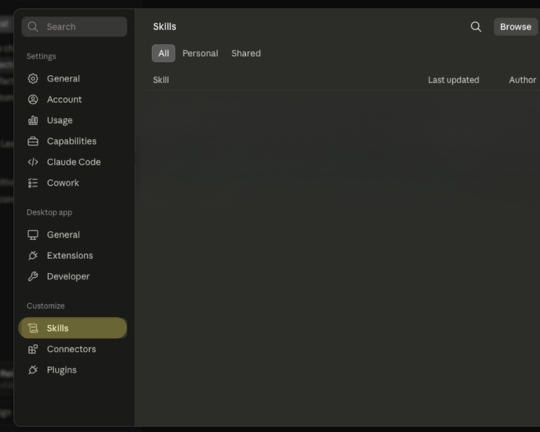
A Skill is how you turn the temp into the veteran. It’s the written-down procedure — your company playbook — for a job you do over and over. You teach Claude the steps once, give the Skill a name, and from then on, the whole staff runs that play the same way every time. There is no need to re-explain it. You just say the word, and the job gets done your way.
Here’s the beautiful part. A Skill isn’t tied to one worker. It’s the standard the entire staff follows — assistant and contractors alike. Write the procedure once, and everyone on the payroll already knows it.
A Skill Can Be a Standing Instruction You Add to a Job You Already Do.
Remember my morning email check — the one where Claude found all that spam and cleared it out? That was good. But I’m making it better.
The real problem isn’t the spam I can delete. It’s the steady drip of newsletters and promos that come week after week. So this week, I’m adding a step to the routine. Now, every morning, before he deletes the junk, I want him to scan for the marketing emails I keep ignoring, hand me a short list of “here are the ones you might want off of.” Once I give the nod — he passes the actual unsubscribing to Claude Chrome, who visits each page and clicks the button.
I only have to teach that procedure once. From now on, it’s just part of the morning check. My assistant learned a new standard, and he’ll follow it every day without me ever bringing it up again.
A Skill Can Also Be a Whole Procedure You Trigger by Name.
In my business, since we offer services at annual meetings, a lead that went cold a year or two ago may again be a good prospect. So I taught Claude a procedure. Go into my CRM. Find every lead created exactly 48, 100, and 152 weeks ago. Pull them into a clean list, so my team can reach back out. I picked those dates because if a potential customer reached out to us last year, we may not have closed the deal because time was too short. So the timing begins four weeks earlier than the date they contacted us last year.
Now, my sales team could manually do this each week. (Which is what I’ve always expected them to do.) But if they do, it would be a three-step process — once for each timeframe. (Which is why they almost never do it.)
In addition, I had Claude look at the contact’s title, industry, and company size. (Remember how I had the AI insert this additional data during the import?) And finally, after collecting the list, I color-code the listings from top to lowest priority.
Now, I just type the name of that Skill, and the whole thing runs — the right leads, on the right anniversaries, in the right format. A job that would’ve taken an afternoon of database wrangling happens in the time it takes to type a few words. (By the way, the Skill runs when I type the Skill name only because that is how I set it up. I could make it run first thing every Monday morning at 7:30 AM if I wanted to.)
That’s the power of a Skill. You do the hard thinking one time. Then, you get the benefit of the Skill over and over without any extra effort!
5) Now, Let Claude Run Your Repetitive Tasks to Lower Labor Costs and Increase Your Margins.

Remember the team member from the start — the one who left, and we all stood around the coffee pot wondering how we’d replace her? Here’s how that turned out.
She had three big jobs. One by one, we handed each to Claude.
First, customer appreciation. After every event, our instructors sent him the photos they’d taken. He’d edit each one to look professional, then upload it to Mixtiles, which frames a print and mails it to the client. A lovely touch — and it ate hours. Now the photos come in, Claude cleans them up, and the framed gift is on its way. An afternoon’s work happens while we do something else.
Second, social media. He’d find the events we’d led, comment on clients’ posts, and keep our own feeds active. Steady, time-consuming work — exactly what an assistant who already knows our clients can tee up. Now Claude finds the posts worth engaging, drafts the comments, and lines up our content. I give the nod, and it goes out.
Third, writing. She’d dig through Semrush for the keyword phrases our competitors ranked for but we didn’t, then write articles to close the gap. Two skills in one — research and drafting — and Claude does both. (In fact, this very guide started exactly that way.)
We didn’t replace her. We didn’t need to. The same work still gets done — clients still get their framed photos, the feeds stay active, the articles still publish — but it no longer costs a salary. My biggest overhead is payroll. When work gets done without adding to payroll, that money doesn’t disappear — it becomes margin.
My business is consulting. Yours might be nothing like it. But the idea works in any shop — here are three very different ones.
If You Run a Service Business, Claude Helps You Fit More Jobs into the Same Day.
Say you run an HVAC company. Your profit lives and dies by how many calls your techs finish in a day — and half the day gets lost driving back and forth across town in no particular order.
Hand Claude tomorrow’s job list. He looks at where each call is, groups the ones near each other, and lays out an order that keeps your tech moving in one direction instead of zigzagging. Fit one extra job into each truck’s day, and you haven’t added a single hour of labor or a drop of gas money you weren’t already spending. That extra call is almost pure margin.
If You Invoice Customers, Claude Helps You Get Paid Faster.
Here’s a quiet profit-killer in a lot of small businesses: the lag between finishing a job and sending the bill. The work wraps on Tuesday, but the invoice doesn’t go out until somebody finds an hour on Friday — so the money shows up a week later than it had to.
Connect your CRM and your accounting software, and that gap closes. The job gets marked complete, and Claude drafts the invoice from the deal details — the right client, the right amount, the right line items — ready for you to glance over and send the same afternoon. You stop paying someone to retype data between two systems, and the cash lands in your account days sooner. Faster invoices mean faster payments, and faster payments are oxygen for a small business.
If You Sell Your Services, Claude Helps You Find Your Next Customer.
Say you’re a freelance writer — or a designer, a coach, a consultant. The hardest part isn’t the work. It’s keeping the pipeline full while you’re busy doing the work you already have.
Put Claude on it. He can research businesses that fit the kind of client you want, pull together what you’d need to know about each one, and draft a personal first email — not spam, a real note that shows you did your homework. You read each one, make it yours, and hit send. The prospecting that used to vanish under your billable work now happens in the background, and your pipeline stays full even in your busy weeks.
Now that You Know How to Use Claude.AI, Go Use Claude AI!
Two months ago, I was standing by a coffee pot wondering how I’d replace one good employee. Today, I’m not sure I’ll ever hire for that role again — and my margins are better for it.
That’s the shift. Not “AI writes my emails now.” The shift is that the repetitive, time-eating work that used to require a paycheck doesn’t anymore. The framed photos still ship. The invoices still go out. The articles still publish. The work didn’t disappear — the labor cost did. And every dollar of labor cost you remove without losing the work is a dollar of margin you keep.
We are setting on one of the most fundamental changes in the history of business. This could be the industrial revolution, the personal computer, and the internet all rolled into one. But you won’t learn how to use this massive breakthrough by watching someone else capitalize on it. You’ll learn it the way I did — by handing Claude one real job and seeing what comes back.
So pick the smallest thing on your plate that you dread doing. The inbox cleanup. The spreadsheet nobody wants. The follow-up you keep putting off. Hand it over this week.
You hired the assistant, gave him the keys, and met his crew. Now put them to work!